Introducing Blinkar: Your Blink Cameras on Your Mac
I have several Blink cameras. Cheap, wireless, battery-powered, and they mostly just work. But the only way to check your clips is the Blink phone app or the web dashboard, and neither is particularly pleasant when you’re already sitting at your Mac. I wanted something I could glance at without reaching for my phone, that could give me a quick peek at what the cameras caught, right from the menu bar. So I built Blinkar.
Blinkar is a native macOS menubar app for viewing Blink security camera clips and getting motion notifications. It lives in your menu bar, stays out of the way, and surfaces your camera clips when you want them. No Electron, no web wrapper — just Swift, SwiftUI, and AppKit doing what they do best.
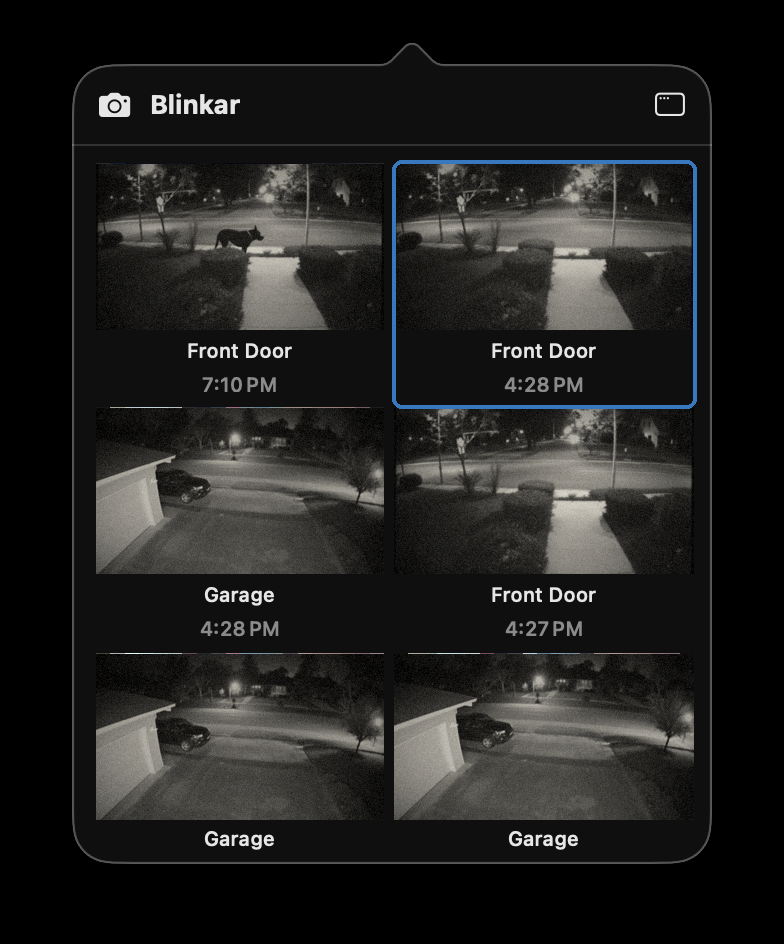
Quick-look popover
Left-click the camera icon in your menu bar and a popover drops down showing your most recent clips as a thumbnail grid. Each thumbnail shows the camera name and timestamp. Click one to play it.
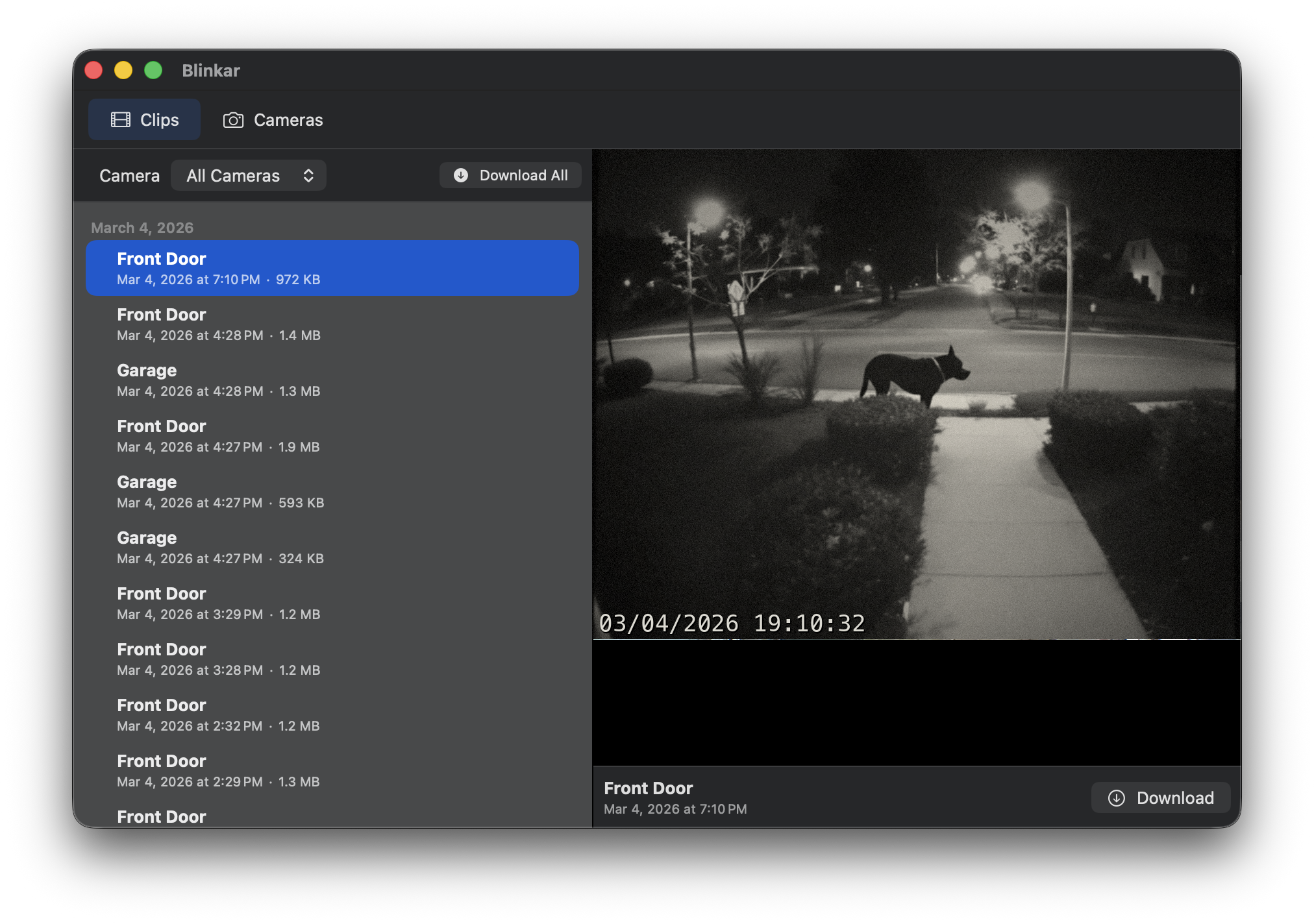
Full clip browser
When you need to dig deeper, open the full window. All your clips are listed by date, filterable by camera. Select a clip to play it inline with full video controls. You can download individual clips or hit “Download All” to grab everything at once.
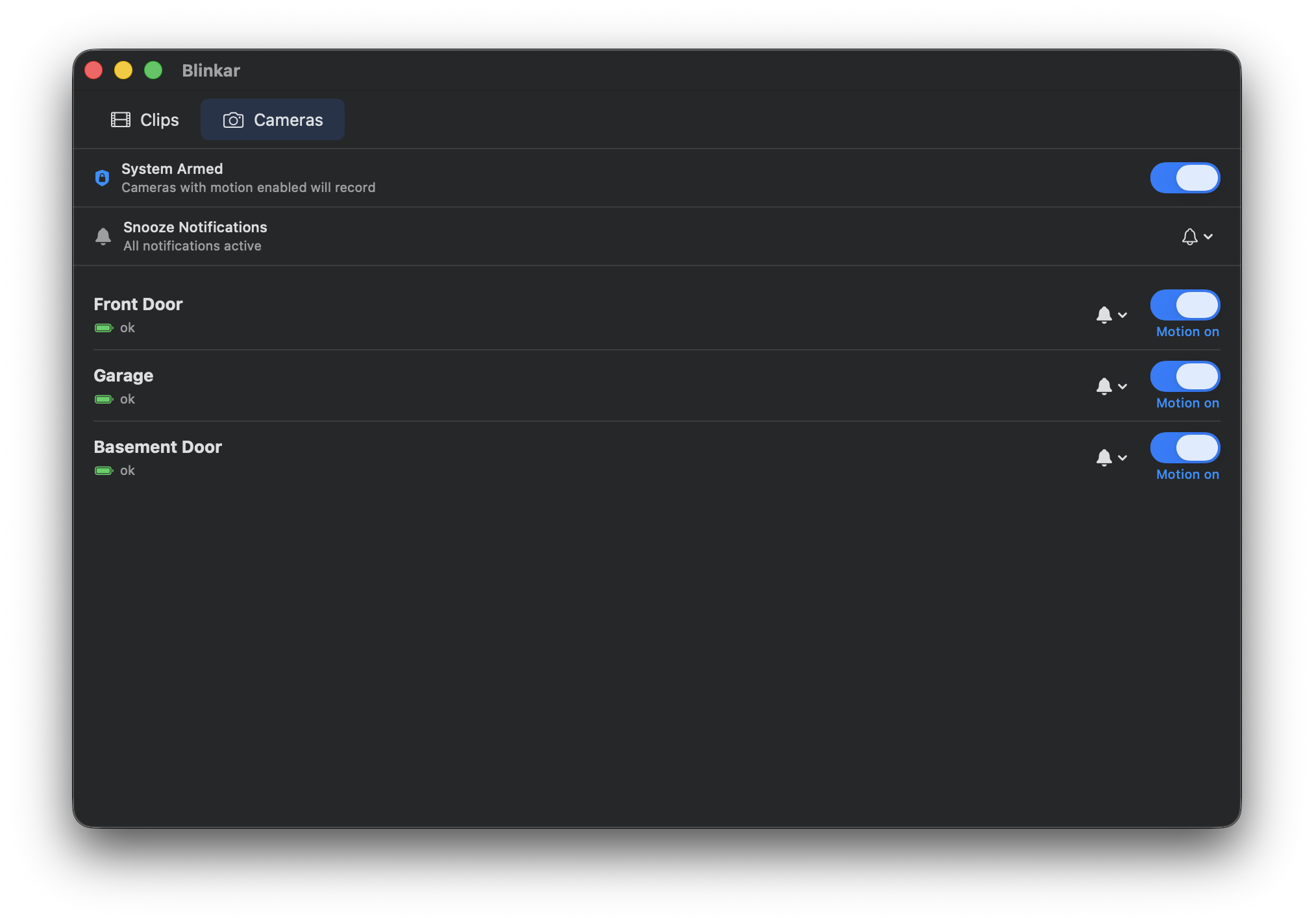
Camera controls
The Cameras tab shows all your cameras with their status and gives you direct control. Arm or disarm your entire system, toggle motion detection on individual cameras, and snooze notifications when you don’t want to be bothered. Everything you’d normally pull out your phone for, right there in the app.
Motion notifications
Blinkar polls for new clips in the background (configurable interval, default 60 seconds) and sends you a macOS notification when motion is detected. Click the notification and the clip is right there.
The details
A few things worth mentioning:
- Menubar-first — no Dock icon clutter. Blinkar lives in your menu bar and stays there. A window only appears when you ask for one.
- Secure auth — your Blink credentials are stored in the macOS Keychain, not in a plist or config file. Blinkar supports Blink’s 2FA/PIN verification flow.
- Bulk download — download individual clips or all clips at once. Useful for archiving footage before Blink’s cloud storage rotates it out.
- Native performance — built with Swift and SwiftUI. No background web views, no bundled runtimes. It uses about as much memory as you’d expect a menubar app to use, which is to say: not much.
- Private — Blinkar talks directly to the Blink cloud API. No intermediary servers, no analytics, or telemetry. Your camera footage stays between you and Blink.
Requirements
- macOS 14 (Sonoma) or later
- A Blink account with cloud-stored clips
Get it
Blinkar is available now on Gumroad.